

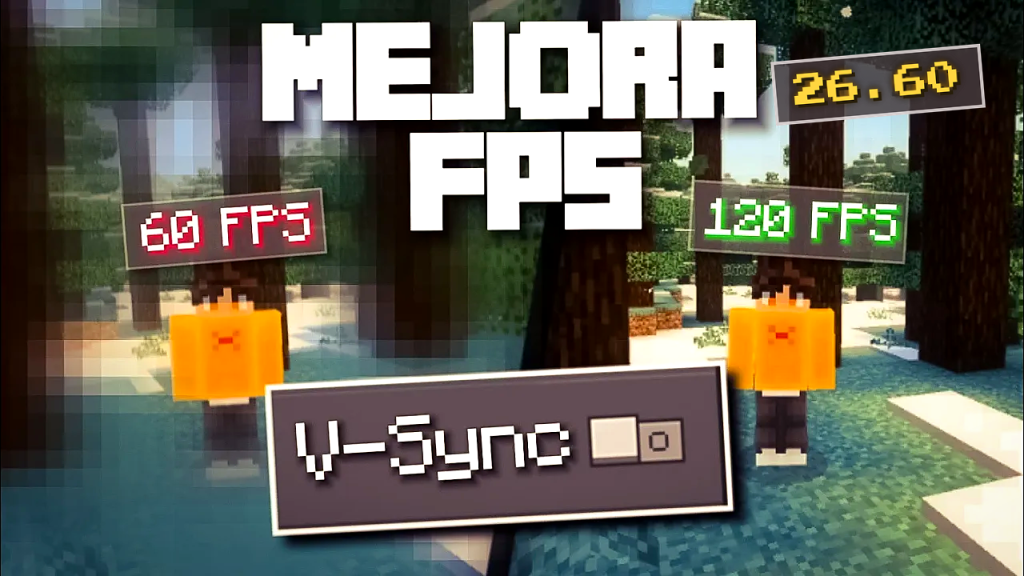
⚡ If Minecraft feels slower since the latest update, you are not alone. In this guide I explain, step by step, how to optimize Minecraft Bedrock 26.60, disable V-Sync and boost your FPS on both Android and Windows, using the exact tools I show on my YouTube channel.
1. Why Minecraft Bedrock 26.60 Might Be Stealing Your FPS 🎮
Minecraft Bedrock 26.60 launched on October 27, 2026 with more than 600 bug fixes, the Drop 4 experiment with Ice Caves, and a native Nintendo Switch 2 edition (you can read the full breakdown in my Minecraft Bedrock 26.60 review). Even so, many Minecraft PE and PC players feel the game is not as smooth as it should be, even on phones and computers with plenty of power. A big part of the problem is not your device but a setting that is turned on by default and that almost nobody knows about: vertical sync, or V-Sync. This feature forces the game to wait for your screen before showing each frame, and in Minecraft Bedrock it can end up capping your FPS, adding delay to your controls, and making the game feel heavy in the moments that matter most, like PvP, parkour, or farms packed with entities. Worse, Mojang does not include a visible switch to turn it off on every platform, so most players have no idea it exists. In the sections below you will learn what V-Sync does, why its toggle disappeared, and how to get it back safely so you can increase FPS in Minecraft Bedrock without installing anything sketchy or breaking your worlds.
2. What V-Sync Is and How It Affects Minecraft Bedrock Performance 🖥️
V-Sync synchronizes the frames Minecraft renders with your screen’s refresh rate, which is usually 60, 90, 120, or 144 Hz. Its goal is to prevent screen tearing, the effect where the image looks split in two when you turn the camera quickly. The catch is that, to do this, the game has to wait for the display on every single frame, and that wait turns into input lag: your clicks and movements take a little longer to show up on screen. On PC the effect can be even worse. On Mojang’s official bug tracker, players report that Minecraft Bedrock gets stuck at half of their refresh rate, for example 72 FPS on a 144 Hz monitor, even with the frame rate set to “Unlimited” and the graphics card barely working. When they turn V-Sync off in the game’s configuration, that cap disappears. That is why, if you are searching for how to remove the FPS limit in Minecraft or how to reduce lag in Minecraft PE, V-Sync is the first thing you should check before lowering your graphics or blaming your device.
3. Why the V-Sync Option Disappeared from Minecraft Bedrock 🔍
For years, the community has asked on the official Minecraft feedback site for a V-Sync toggle on Bedrock across every platform: PC, consoles, and phones. Mojang once tested a switch in Preview builds but removed it, and since then the option has stayed hidden in the game’s configuration file. For a while there was an easy workaround: a resource pack that added the V-Sync switch to the video settings menu. The problem arrived with the 26.X versions, when Mojang moved most settings screens to its new interface, known as Ore UI. Several players report that, starting with 26.10, the resource pack trick stopped working because the new menu ignores the changes those packs used to make. That is why, today, to disable V-Sync in Minecraft Bedrock 26.60 you need two things: the V-Sync Option Extension pack, which adds the switch, and a way to launch the game that lets you use it, such as a launcher on Android or a mod that brings back the old UI on Windows.

4. What You Need Before Optimizing Minecraft Bedrock 📋
Before you start, make sure you have everything ready so the process works on the first try. The most important requirement is a legitimate copy of Minecraft Bedrock: the official Google Play version on Android, or the Microsoft Store or Xbox app version on Windows. The launchers in this guide do not replace the game; they only start it with extra options, and LeviLauncher’s documentation states that it requires an original license to work. Next, grab the resources at the end of this article: the V-Sync Option Extension pack in .mcpack format, MB Loader for Android, LeviLauncher for Windows, and the ForceCloseOreUI mod to restore the classic menu on PC. I strongly recommend making a backup of your worlds before changing any settings, especially if you play long survival worlds. Finally, update Minecraft to version 26.60, close any apps running in the background and, if you are on a phone, plug in the charger so the system does not throttle performance while you test.
5. How to Disable V-Sync in Minecraft PE on Android with MB Loader 📱
On Android, the easiest way to turn off V-Sync in Minecraft PE is MB Loader, a launcher available on Google Play with more than 500,000 downloads. MB Loader creates a separate instance of Minecraft with shader support, lets you import add-ons, back up your game data, and even edit the options.txt file without digging through complicated folders. If you want to understand how it works under the hood, I covered it in detail in how MB Loader and custom shaders work on Bedrock. First, install MB Loader from the Play Store and open it; the app will detect your original Minecraft installation. Then import the V-Sync Option Extension pack from the launcher itself, or by opening the .mcpack file with Minecraft. After that, always launch the game from MB Loader instead of the regular Minecraft icon, so the changes load correctly. This method is perfect for players on mid-range and low-end phones who want to squeeze every possible frame out of the game without losing their worlds or progress. If you ever want to go back to the default setup, just open Minecraft from its normal icon or disable the pack.

6. How to Enable the V-Sync Option Extension Pack on Android ⚙️
With MB Loader ready, the next step is activating the pack that adds the switch. Inside Minecraft, go to Settings > Global Resources, find V-Sync Option Extension in the list of available packs, and activate it. It is important to apply it as a global resource and not just inside one world, because the switch appears in the game’s general settings. Next, open Settings > Video and look for the new V-Sync option: turn it off and restart Minecraft from MB Loader so the change takes effect. If you would rather not use the pack, MB Loader also lets you edit options.txt directly: that file contains the gfx_vsync line, which controls vertical sync. Make a copy of the file before editing it so you can always revert. When you jump back into your world, turn on an FPS counter if your setup supports it, or simply spin the camera and walk around an area full of blocks: the game should feel noticeably snappier with less input lag, especially if your phone has a 90 or 120 Hz screen.
7. How to Disable V-Sync in Minecraft Bedrock on Windows with LeviLauncher 💻
On PC, the tool I recommend is LeviLauncher, a launcher for Minecraft Bedrock on Windows made by the LeviMC team, the same developers behind the LeviLamina mod loader. LeviLauncher lets you install and launch Release or Preview versions, keep your worlds and packs separate from the default installation, manage resource packs, add-ons, and servers in one place, and import mods in .dll or .zip format. To get started, download LeviLauncher from its official site or GitHub releases page, install it, and let it detect your original Minecraft copy from the Microsoft Store or Xbox app. Then import the V-Sync Option Extension pack from the packs section and enable it as a global resource. This method is ideal if you play on a 120 or 144 Hz monitor and feel that Minecraft Bedrock is not using your graphics card properly, or if your FPS stays locked at one exact number no matter how much you lower the graphics. LeviLauncher does not modify your original installation, so you can always return to the vanilla game by opening it from the Start menu.
8. How to Restore the Old Minecraft UI with ForceCloseOreUI 🧩
This is the key step that makes the switch show up on Windows. Since the settings screens in 26.X use the new Ore UI, the V-Sync pack cannot add its option to that menu. The solution is ForceCloseOreUI, a free, open-source mod published on GitHub that force-closes Ore UI and brings back the classic Minecraft Bedrock interface. To install it, download the ForceCloseOreUI.dll file, open it in LeviLauncher using the import mod option, and enable it for the version you play. The mod creates its own configuration file at mods/ForceCloseOreUI/config.json, in case you want to adjust which screens return to the classic style. Launch Minecraft from LeviLauncher, go to Settings > Video, and now you will see the V-Sync switch: turn it off and restart the game. Only download the mod from its official repository or from the button in this article, and never from sites that ask you to install extra programs, because a modified .dll file can be dangerous for your PC.
9. More Tips to Optimize Minecraft Bedrock and Gain FPS 🚀
Disabling V-Sync is the most noticeable change, but you can combine it with other tweaks to optimize Minecraft Bedrock to the max. Lower your render distance to somewhere between 8 and 12 chunks if your device is low-end, turn off fancy clouds, extra particles, and blur, and if you use Vibrant Visuals, switch to the mode that favors performance instead of visuals. Be careful with heavy packs: realistic shaders and animation packs like Actions and Stuff look amazing, but they eat a lot of resources. If you want the game to look great without losing smoothness, try low-end shaders optimized for mobile, like the Mirai Shader v3.1.0. On PC, update your graphics card drivers and enable hardware-accelerated GPU scheduling in Windows. On mobile, turn off battery saver while you play, free up storage, and restart your device before long sessions. With all of these changes together, the difference in FPS and stability can be huge, even on devices that could barely run the game before.
10. Results, Risks and Final Verdict: Is Disabling V-Sync Worth It? ✅
In most cases, yes. When you disable V-Sync in Minecraft Bedrock 26.60, the game responds faster, your FPS is no longer tied to your screen, and the experience feels much smoother in PvP, Bedwars, parkour, and competitive servers. Keep two things in mind, though: without V-Sync your FPS can fluctuate more from moment to moment, and on some screens you may see a bit of tearing when you whip the camera around. If that bothers you, just turn it back on from the same switch. Also remember that these methods rely on community-made tools, so a new Minecraft update can break them temporarily until their creators update them; that is why keeping backups of your worlds is always a good idea. If you want to see the whole process on video, including the before-and-after comparison and the Android and Windows tutorials, check out my YouTube channel PAU💫07. Let me know in the comments how many FPS you gained and what device you play on, and below you will find every resource you need to boost your FPS in Minecraft Bedrock today. 🙌
⛏️ DOWNLOADS
Disable V-Sync in Minecraft Bedrock 26.60
Requires a legitimate copy of Minecraft Bedrock. Back up your worlds first.